Homework
All homework is on Google Classroom! If you are having any problems, please get in touch, either in person or by clicking “Contact Teacher” 
How to use Google Classroom
To be able to access Google Classroom, you will need to accept the invite which has been sent to your child’s school email account.
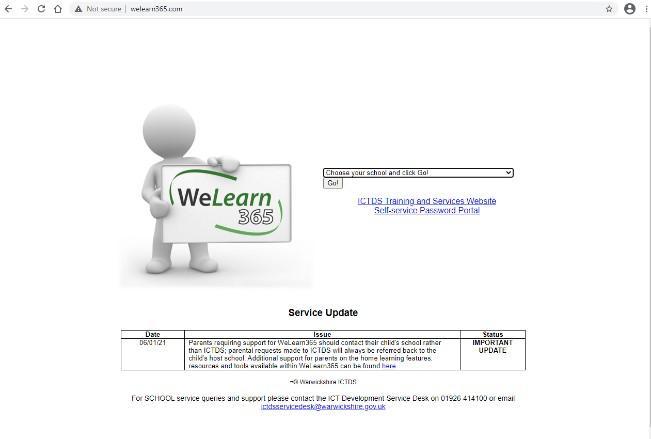
- Go to www.welearn365.com
- You will see this screen and need to select ‘Brownsover Community School’ from the dropdown bar
- You will then be asked to type in your child’s username and password. Usernames are their initial, full stop, surname. There are some accounts which also require a number after the surname.
- The username and password have been emailed to you.
- Open the email and you will see and invitation for Google Classroom. Accept the invite.
- Go to www.classroom.google.com (Your child’s login details for Google Classroom are the same as the ones you used to access their email account).
- Click on ‘Go to Classroom’.
- Log in with your child’s _____@welearn365.com account and type in their password for this account.
How to get and hand in work (computers and laptops)
- Go to Google Classroom
- Click ‘Classwork’
- Click on an assignment, then ‘View assignment’
- On the right-hand side of the page, click ‘Add or create’. Depending on the type of work the teacher has set:
- You can take photos of your child’s completed work, upload them to your computer and then upload the photos in Google Classroom – click ‘File’, then ‘Select files from your device’, then ‘Upload’
- Or, your child can type up their answers in a Google Doc – click ‘Docs’ to load a new Google Doc
- Once your child has finished their work, click ‘Hand in’, then ‘Hand in’ again to confirm
- If you have made a mistake, you can click ‘Unsubmit’ to return the work to you, then follow the previous steps to resubmit work
How to hand in work (mobile devices – Android or iOS)
- Open the Google Classroom app (available from App Store or Play Store)
- Tap on your child’s class, then ‘Classwork’ (at the bottom)
- Tap on an assignment, then the arrow at the bottom
- Tap ‘Add attachment’. Depending on the type of work the teacher has set:
- You can take photos of your child’s completed work, upload them to your computer and then upload the photos in Google Classroom – click ‘File’, then tap the file on your device
- Or, your child can type up their answers in a Google Doc – tap ‘New Doc’ to load a new Google doc
- Once your child has finished their work, tap ‘Hand in’, then ‘Hand in’ again to confirm
- If you have made a mistake, you can click ‘Unsubmit’ to return the work to you, then follow the previous steps to resubmit work.
Watch a video demonstration here: https://youtu.be/o4JeCTfhvnI
A guide to safe use of Google Classroom is here: https://www.commonsensemedia.org/blog/parents-ultimate-guide-to-google-classroom